
The Pricing section is designed for mass updating catalog prices through an Excel file.
It allows you to quickly change a large number of rental prices at once, including both standard prices and prices from all price types.
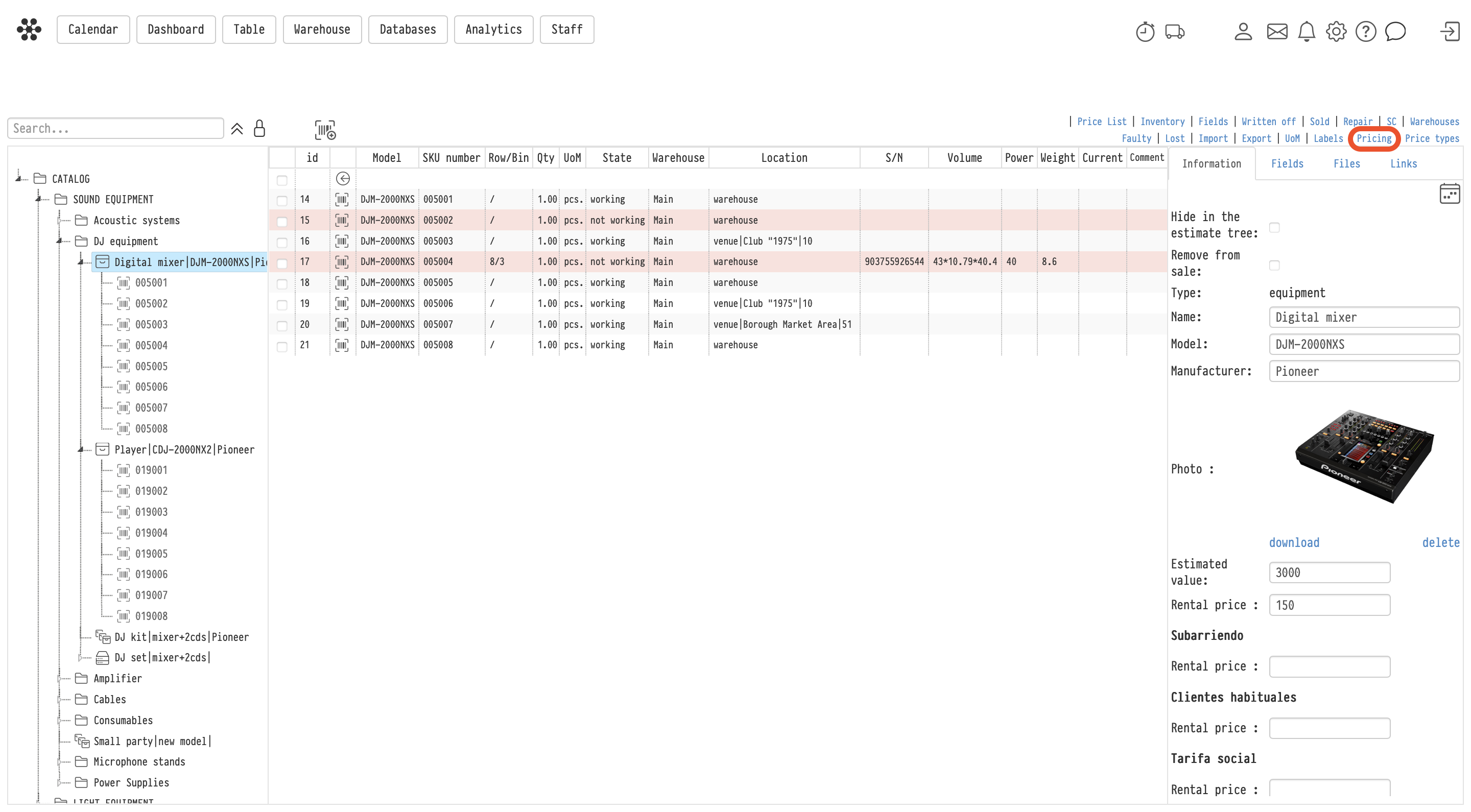
The section is located in the top menu of the catalog.
Using the Pricing tool, you can:
- mass update rental prices,
- edit prices for different price types,
- apply seasonal price increases,
- update price lists after new purchases,
- configure separate prices for sublease, loyal customers, and other scenarios.
Important: the Price types section is used to create price sets, while Pricing is used for mass editing the values inside those sets.
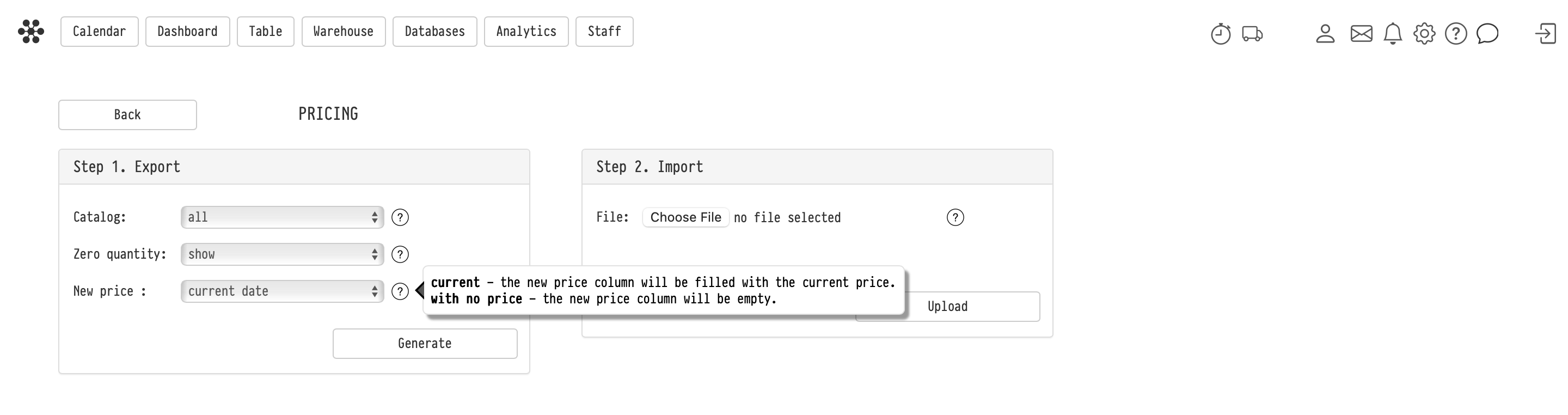
Step 1. Export catalog data
The export block is located on the left side of the page.
Before generating the file, you can configure several parameters.
Catalog
Allows you to select:
- the entire catalog,
- a specific section,
- a subsection,
- or even a specific catalog entry.
The export may include:
- equipment,
- services,
- components,
- consumables,
- kits,
- sets,
- and other catalog entries.
Zero quantity
Defines whether entries with quantity 0 should be included in the export.
New price
Defines how the New price columns will be filled in the Excel file.
Available options:
- current — the current rental price will automatically be copied into the new price column;
- with no price — the new price column will remain empty for manual input.
After configuring the parameters, click Generate.
The system will create and download an Excel file.
Excel file structure
The exported file contains catalog information such as:
- id,
- catalog path,
- entry type,
- name,
- model,
- manufacturer,
- quantity,
- current prices,
- new prices.
For each price type, the system creates a separate pair of columns:
- Rental price — current,
- Rental price — new.
For example:
- standard,
- sublease,
- loyal customers,
- social pricing, etc.
Editing the file
The current price columns are informational only.
To update prices, edit only the columns:
- Rental price — new.
Empty values are ignored during import and will not change the existing price in the system.
Important
It is not recommended to modify service fields such as:
- id,
- path,
- type,
- name,
- model,
- and other identifying data.
If these values are changed, the system will not be able to match the catalog entry and the update will simply be skipped.
No error message will be displayed.
Step 2. Import the file
After editing the Excel file:
- select the file in the Import block;
- click Upload.
The system will immediately apply the changes to the catalog.
What data can be updated
The Pricing tool updates rental prices only.
Other parameters such as:
- estimated value,
- quantity,
- descriptions,
- specifications,
- entry type,
- and other catalog data
cannot be changed through this Excel file.
Relation to projects
After import, the new prices are stored in the catalog, but existing Estimates are not recalculated automatically.
To update prices in an existing Estimate:
- open the required Estimate sheet;
- use the action Update prices.
Only after that will the Estimate prices be updated according to the current catalog values.
Typical use cases
The Pricing tool is useful for:
- seasonal price updates,
- mass price indexation,
- configuring prices for loyal customers,
- preparing special pricing policies,
- updating sublease prices,
- changing a large number of prices at once.
Key concepts
Pricing, Catalog, Rental price, Price types, Export, Import, Excel, Mass editing, Update prices, Estimate, Project, Price List