
Golova supports integration with external calendar services using a personal .ical link.
This integration allows projects from Golova to appear in external calendar applications such as:
- Google Calendar
- Apple Calendar
- Yandex Calendar
The system generates a unique personal calendar link for each employee.
Where to find
Go to the employee card in the Employees database.
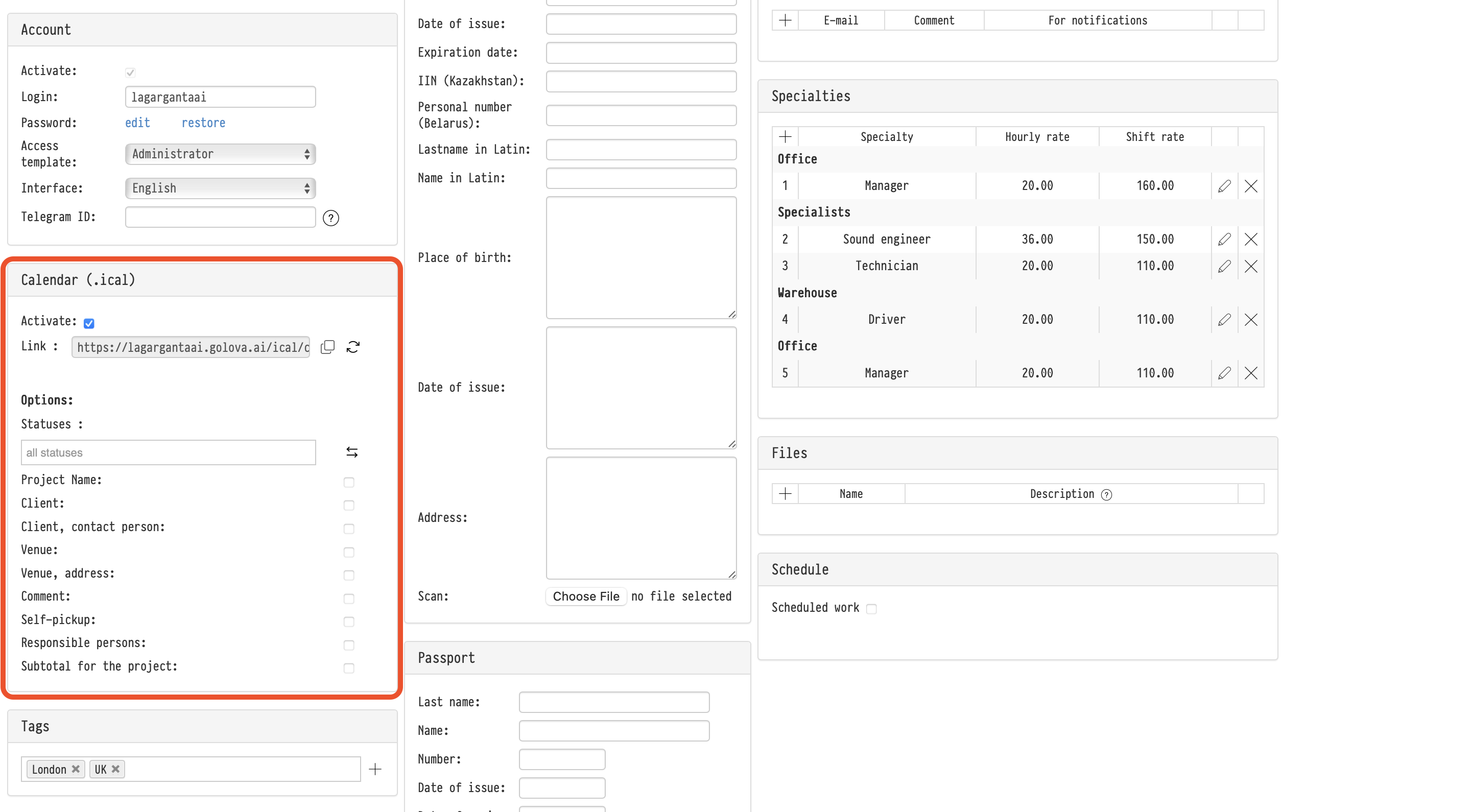
The integration settings are located in the block:
Calendar (.ical)
The external calendar block is displayed only for employees who have a system account with a login and password.
If an employee exists only in the Employees database without an account, the .ical link will not be available.
Activating the integration
To enable the external calendar, activate the checkbox:
Activate
After activation, the system generates a personal .ical link for the employee.
If the integration is disabled:
- the link will stop working,
- external calendar services will eventually remove previously synchronized events.
If an employee is dismissed from the system, their calendar link is automatically deactivated.
How synchronization works
The integration works as a subscription calendar.
External services periodically request updates from Golova and automatically refresh calendar events.
The synchronization interval depends on the external calendar service itself.
For example:
- Google Calendar may refresh with a delay,
- Apple Calendar uses its own synchronization interval,
- Yandex Calendar refreshes according to its own schedule.
The .ical link itself remains permanent while the integration is active.
The refresh button next to the link allows manually updating or regenerating the calendar link.
Which projects appear in the calendar
The external calendar exports projects that the employee has access to.
This integration is not related to:
- project assignments,
- work shifts,
- staff planning.
If an employee has permission to view a project, the project will also appear in the external calendar even if the employee is not assigned to work on that project.
Projects are exported according to:
- employee access permissions,
- selected project statuses,
- calendar export settings.
Status filter
The Statuses field allows selecting which project statuses will appear in the external calendar.
Multiple statuses can be selected simultaneously.
For example:
- only active projects,
- only confirmed projects,
- only projects available for warehouse operations.
The invert selection button changes the filter logic to:
all statuses except selected ones
For example:
- select the “Cancelled” status,
- enable inversion,
- all projects except cancelled ones will appear in the calendar.
Calendar event contents
You can configure which project information will appear inside external calendar events.
Available parameters:
- Project Name
- Client
- Client, contact person
- Venue
- Venue, address
- Comment
- Self-pickup
- Responsible persons
- Subtotal for the project
Each parameter can be enabled or disabled separately.
Multi-day projects
If a project lasts several days, it will appear in the external calendar as a multi-day event covering the entire project duration.
Security and access
A unique calendar link is generated for each employee.
Anyone who has access to the link will be able to view exported calendar events.
For this reason, the .ical link should be treated as internal company information and should not be shared publicly.
Key concepts
external calendar, iCal, .ical, subscription calendar, Google Calendar, Apple Calendar, Yandex Calendar, Employees database, employee account, login, password, project access, project statuses, invert selection, calendar events, multi-day projects, calendar synchronization