
In the «Staff» section, there is a special «unallocated» row. It is used for preliminary resource planning: when you already know how many specialists will be needed for a project, but are not yet ready to assign specific people.
How shifts get into this row
If, when adding staff to a project, you specify a quantity greater than one, the field for selecting a specific employee is hidden. The system automatically sends these work shifts to the «unallocated» row as separate blocks.
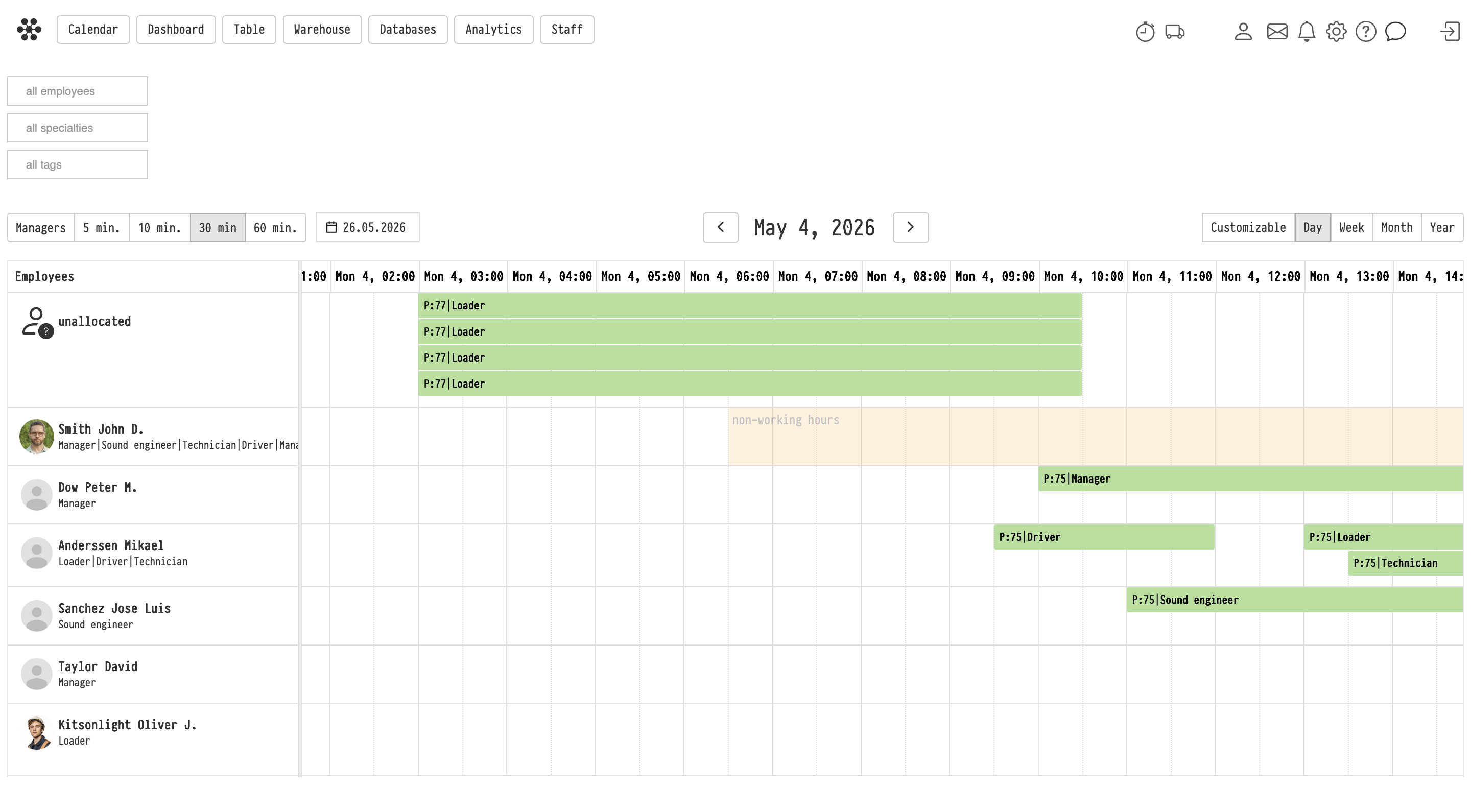
How to allocate shifts
To assign performers to planned shifts:
-
Open the «Staff» section in the top menu.
-
For convenience, enable the filter for the required specialty (for example, «Loader») to keep only suitable candidates on the screen. This will also help you immediately assess which of the required specialists are available on this day.
-
Click on the shift block in the «unallocated» row and drag and drop it onto the row of the desired employee.
-
The shift will be assigned to the selected person, and the data will be automatically updated in the project planning.
Note: You can only drag a shift to an employee who has the corresponding specialty listed in their card. If you try to assign a shift to an employee without the required skill, the system will display an error.
Key concepts
unallocated, staff, shift allocation, drag-and-drop, specialties, employee planning, mass staff addition